

Table of Contents
Introduction
The “Mail Queue Manager” feature in the WHM control panel gives you the option to either view, delete or attempt to deliver queued emails that have not been sent out yet. It can be really useful when you are troubleshooting problems related to mail delivery. For example, if your email queue is full and you are trying to find what is causing it. Usually, if you notice a lot of emails being sent from a specific email account in a very short period of time and the same are being queued up, this is a sign of a compromised account that is spamming and you should investigate it. Let’s start the guide.
What is Mail Queue?
Mail Queue is a directory in SMTP Server that stores data and controls mail messages that delivered by sendmail command. Mail queues are formed when the SMTP server has many email messages queued up waiting to be delivered, to avoid sending too many messages from the same server at once – which can cause IP reputation issues. WHM allows you to manage the mail queue on your server and perform actions such as forcing delivery, removing emails from the queue, or checking the email content.
How To Access The Mail Queue Manager In WHM?
- Login to WHM and go to the ‘Mail Queue Manager’ page by entering the term ‘mail queue’ in the search box.
- Once displayed, click on the Mail Queue Manager option.
Searching for Queued Emails
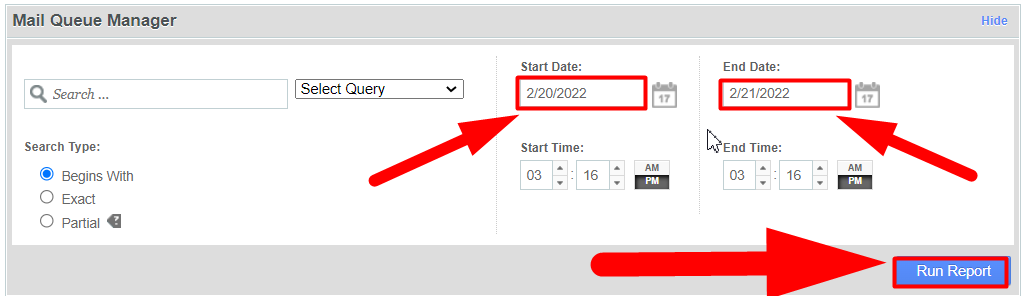
From the Mail Queue Manager main page you will see a section for searching through these queued emails. You can input either a Sender, Recipient, or Message ID (a unique identifier the mail server gives each email sent and received) to filter through the queued messages.
Once you input a search for one of these options, select the corresponding option from the Select Query drop down menu next to the text box: Search Sender, Search Recipient, or Search Message ID.
You can also select No Filter if you do not want to restrict the search to one of these specific options.
The search filter also includes a section to select a particular time frame by entering a Start Date and End Date. This will filter the search results down to emails that fall within this time frame. Please note: WHM only retains this data for 10 days, so email outside of that time frame will not be included in the search results.
Once you’ve input the text to search, and selected the filter options, click the Run Report button.
Viewing Queued Emails
To view an email currently in the queue, under the Actions column, click the magnifying glass icon:

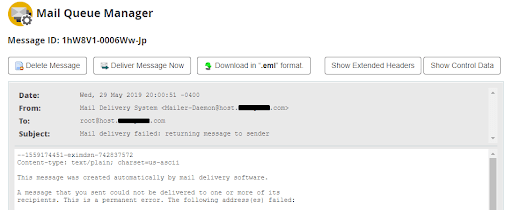
This will display the email’s simple headers, text content, and provide you with options to delete the email, attempt delivery, download the email in .eml format (which you can open in mail client applications such as Microsoft Outlook), or view the email’s extended headers and control data:
Delivering Queued Emails
As shown above, you can view a specific email and click Deliver Message Now to attempt delivery of the message. You can also select messages from the main page of the Mail Queue Manager and click Deliver Selected:
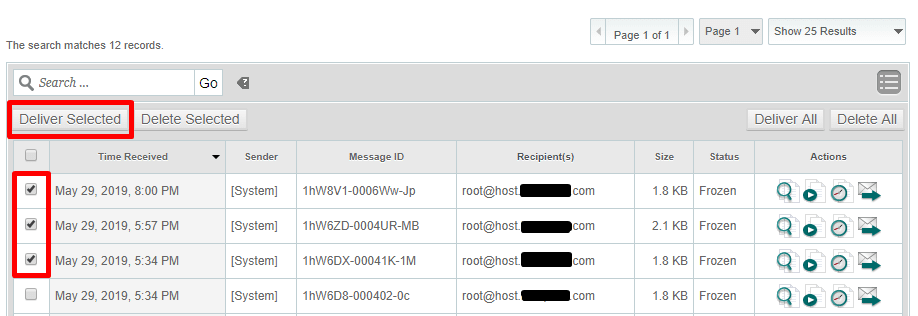
The option Deliver All will attempt to send out all emails currently in the queue.
Deleting Queued Emails
To delete an email currently in the queue, you can view a specific email using the instructions above and then click Delete Message.
Multiple emails can be deleted from the queue using the main page of the Mail Queue Manager. You can either select each email you’d like to remove and then click Delete Selected, or you can remove all queued emails by clicking Delete All.
Unfreezing Frozen Queued Emails
You may see emails listed as Frozen under the Status column. These are emails that failed to deliver after multiple attempts, so in order to help the queue continue to run efficiently, the system will ‘freeze’ these emails. To unfreeze an email, you can click the second icon under actions:

Once unfrozen, the email will attempt to send during the next queue run. Forcing a delivery attempt of a frozen email will also unfreeze the selected email.
Multiple frozen emails in the queue may indicate an issue that requires further investigation, such as a remote mail server blocking the mail transaction.
 uladminuser