
Monitor and Manage Website Traffic:

Monitoring and manage website traffic using cPanel is an essential practice for website owners to optimize performance, understand user behavior, and identify potential issues. cPanel provides multiple tools that help you track your site’s activity, bandwidth usage, and visitor patterns. Below is a comprehensive guide on how to monitor and manage website traffic effectively using cPanel.
Table of Contents
1. Accessing cPanel’s Traffic and Analytics Tools
cPanel offers several built-in tools for monitoring traffic:
- AWStats
- Webalizer
- Bandwidth
- Error Logs
- Raw Access Logs
Each tool provides different insights into your website traffic and server performance.
AWStats
AWStats is one of the most comprehensive traffic monitoring tools in cPanel. It provides detailed information about website visitors, traffic sources, and search engine queries.
To access AWStats:
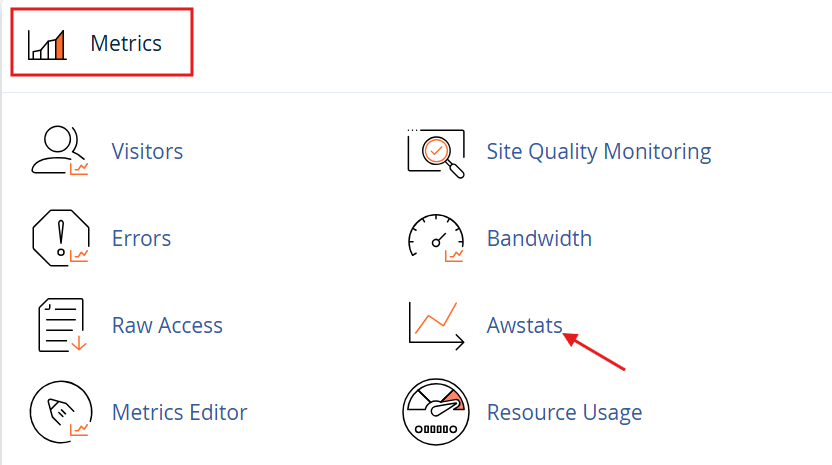
- Log in to your cPanel dashboard.
- Scroll down to the Metrics section and click on AWStats.
- Select the domain or subdomain you want to monitor.
AWStats provides key insights, such as:
- Number of visits and unique visitors.
- Data on traffic sources (e.g., direct traffic, search engines, or referrals).
- Details on operating systems, browsers, and geographic location of visitors.
- Information about the most accessed pages.
Webalizer
Webalizer is another traffic analysis tool available in cPanel. It displays information in graphical form, making it easier to visualize traffic trends over time.
To use Webalizer:
- Navigate to the Metrics section in cPanel.
- Click on Webalizer.
- Select the domain or subdomain you want to view.
Webalizer displays traffic data such as:
- Daily traffic trends.
- Bandwidth usage.
- Top URLs and referring sites.
- Browsers and operating systems used by visitors.
2. Monitoring Bandwidth Usage
Monitoring bandwidth is essential to ensure your website doesn’t exceed the limits set by your hosting provider. Exceeding bandwidth can lead to service disruptions or additional charges.
To view bandwidth usage:
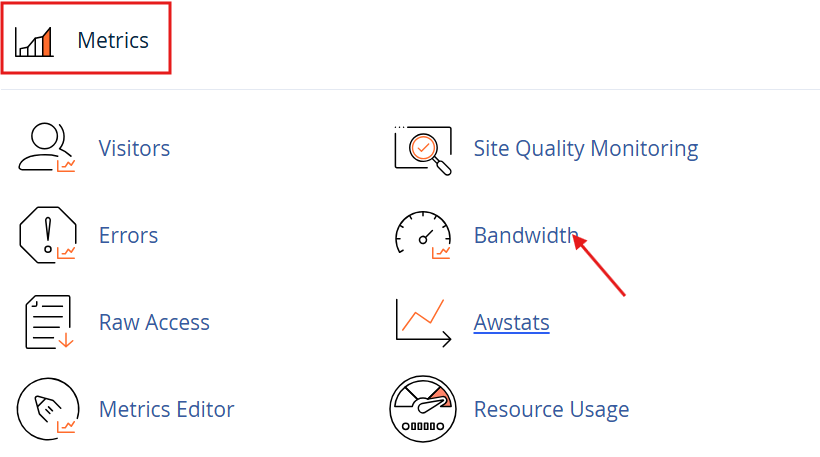
- Log in to cPanel and go to the Metrics section.
- Click on Bandwidth.
The bandwidth tool shows:
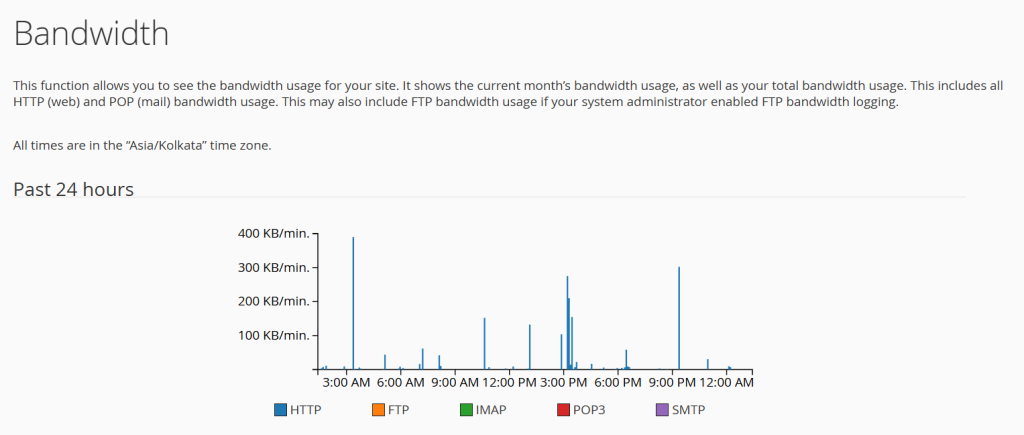
- Total bandwidth usage for HTTP, FTP, and email services.
- Bandwidth usage over different periods (daily, weekly, or monthly).
Keeping an eye on bandwidth allows you to optimize performance, especially during traffic spikes. If you notice that your bandwidth usage is constantly reaching its limits, it may be time to upgrade your hosting plan.
3. Accessing Raw Access Logs
Raw Access Logs are valuable for advanced users who need unprocessed log files for detailed analysis. These logs provide a record of all visits to your website.
To access Raw Access Logs:
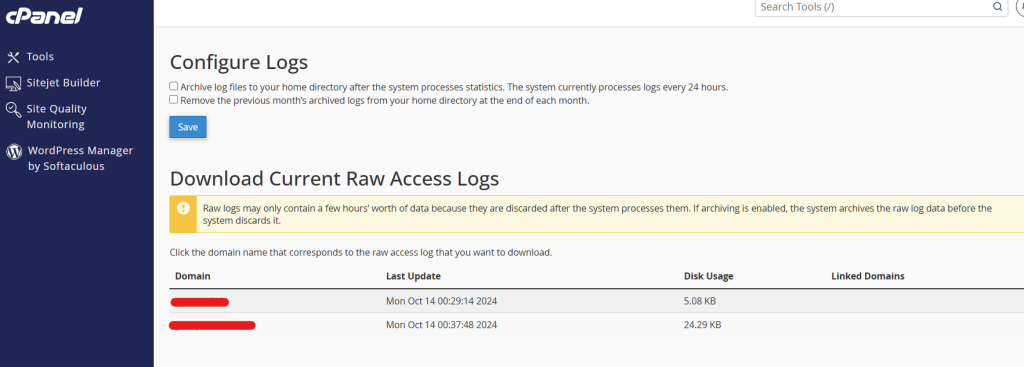
- Go to the Metrics section in cPanel.
- Click on Raw Access.
- Choose the domain or subdomain, then download the log file.
Once downloaded, you can open the log file in a text editor or an analytics tool for a deep dive into visitor data.
4. Using Error Logs to Identify Issues
Error logs help identify problems on your website, such as broken links, missing files, or server errors. Monitoring these logs allows you to fix issues before they affect your users’ experience.
To view Error Logs:
- Navigate to the Metrics section in cPanel.
- Click on Errors.
Error logs typically display:
- Time and date of the error.
- The type of error (e.g., 404 Not Found, 500 Internal Server Error).
- The URL that caused the error.
5. Managing Traffic and Performance
Monitoring traffic is essential, but managing your website’s performance based on traffic insights is just as critical. Here are some steps to manage your website traffic effectively:
- Optimize website content: Compress images, enable caching, and minify scripts to improve loading speed.
- Upgrade hosting plan: If you notice frequent traffic spikes, consider upgrading to a VPS or dedicated server.
- Set up CDN (Content Delivery Network): A CDN can distribute traffic across different servers and reduce the load on your primary server.
Conclusion
Monitoring and managing website traffic using cPanel tools like AWStats, Webalizer, and Bandwidth is crucial for maintaining optimal website performance. These tools provide a comprehensive view of your website’s traffic patterns, enabling you to make informed decisions about server resources and website optimization.
By using these metrics and logs, you can ensure that your website runs efficiently, even during traffic spikes, while also improving the user experience.